
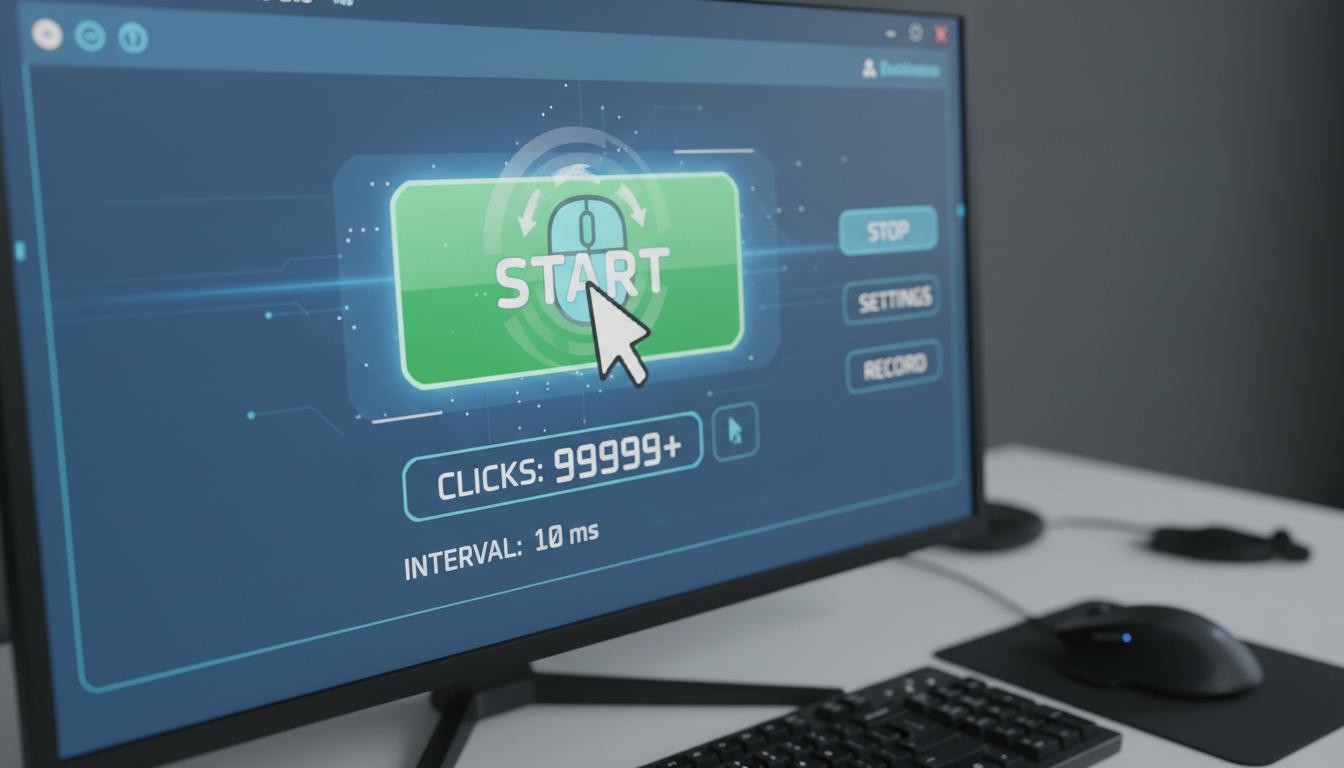
Clicking the same button hundreds of times is slow and rough on your hands. An auto clicker takes that job off you. It automates mouse clicks or taps so you can save time, cut down repetitive strain, and keep tasks moving while you focus on the thinking. This guide explains what an auto clicker is, how it works, the main types, real tools you can use, pros and cons, and how to choose and use one safely in New Zealand.
What is
An auto clicker is software that automatically clicks your mouse or taps your screen. You set where, how often, and how long it should click. Then you start it with a hotkey or button. It is also called a mouse clicker, auto tapper, or autoclicker.
People in Aotearoa use auto clickers for many jobs:
- Testing websites or apps by repeating the same action
- Data entry and admin work that needs lots of identical clicks
- Accessibility needs, to reduce hand strain from constant clicking
- Games that need fast, repeated clicks (note: many games ban this)
Auto clickers can be simple—just repeat a left click every X milliseconds—or advanced, with timers, random delay (to look less robotic), pixel-color triggers, and full macro recording.
How it works
At a technical level, an auto clicker sends click events to your operating system just like a real mouse would. On Windows, it uses system calls such as SendInput. On macOS, it uses the Accessibility API. On Android, it relies on the Accessibility Service to perform taps. The flow is simple:
- Pick where to click: current cursor location or fixed coordinates
- Choose the button: left, right, middle, double-click, or press-and-hold
- Set the interval: milliseconds, seconds, or exact schedule
- Decide how many times to click or run until you stop it
- Start and stop with a hotkey or on-screen control
Many tools add extras:
- Random jitter to break up a perfect pattern
- Pixel or image search: click only when a colour or icon appears
- Break conditions: stop after X minutes, when CPU spikes, or if the window changes
- Macro recording: capture mouse moves, clicks, and keystrokes, then play them back
Permissions and safety
Because auto clickers control input, the OS asks for special permissions:
- Windows: SmartScreen warnings if the file is unsigned
- macOS: Privacy & Security > Accessibility permission; sometimes Screen Recording for pixel detection
- Android: Accessibility Service permission and “draw over other apps” for floating controls
Only install trusted tools. Free is fine, but avoid sketchy download sites. Check signatures, community reputation, and whether the developer maintains updates.
Types / examples
Auto clickers come in a few flavours. Here are the common types and real examples Kiwis can use.
Simple interval clickers
These repeat a click on a timer. They are quick to learn and light on resources.
- OP Auto Clicker (Windows, free)
- GS Auto Clicker (Windows, free)
- MurGaa Auto Clicker (macOS, paid)
Macro recorders and scriptable tools
These capture a whole workflow or let you write scripts for full control.
- TinyTask (Windows, free) — records and replays clicks and keys
- AutoHotkey (Windows, free, open-source) — scripting for hotkeys, clicks, loops
- Hammerspoon (macOS, free, open-source) — Lua scripting to automate macOS
- SikuliX (Windows/macOS/Linux, free, open-source) — image-based automation
Mobile auto clickers
On Android, several apps provide auto tapping:
- Auto Clicker — Automatic Tap (Android, free with in-app purchases)
- Click Assistant — Auto Clicker/Tapper (Android, free with in-app purchases)
On iPhone and iPad, the App Store does not allow classic auto tapper apps. You can use Switch Control (Settings > Accessibility) to create a custom gesture and repeat it, which can help with simple tapping tasks.
Built-in accessibility options
- ChromeOS Automatic Clicks: auto-clicks when the pointer stops over an item
- Windows Mouse Keys and automation via Power Automate for desktop
- macOS Shortcuts and Automator for broader workflow automation
Quick comparison
| Tool | Platform | Price | Key features | Pros | Cons | Best for |
|---|---|---|---|---|---|---|
| OP Auto Clicker | Windows | Free | Interval clicks, hotkeys, repeat count | Very simple, lightweight | No macro recording | Quick, basic clicking |
| GS Auto Clicker | Windows | Free | Single hotkey start/stop, simple timer | Easy setup | Limited features | Beginners |
| TinyTask | Windows | Free | Record/replay mouse and keyboard | Portable, tiny | No logic or conditions | Repeating short workflows |
| AutoHotkey | Windows | Free, open-source | Scripting, loops, hotkeys, control by window | Very powerful | Learning curve | Power users, testers |
| MurGaa Auto Clicker | macOS | Paid | Interval/random clicks, hotkeys | Mac-focused toolset | Paid licence | Mac users who want plug-and-play |
| Hammerspoon | macOS | Free, open-source | Lua scripting for clicks, windows, apps | Extensible | Scripting needed | Advanced Mac automation |
| Auto Clicker — Automatic Tap | Android | Free + IAP | Floating controls, multi-target taps | Flexible on mobile | Accessibility access required | Android tapping tasks |
| SikuliX | Win/Mac/Linux | Free, open-source | Image recognition, scripting | Works across apps | Setup time | UI testing, cross-platform |
Pros and cons
Benefits
- Speed: finish repetitive clicking in a fraction of the time
- Consistency: identical actions every run, useful for testing
- Ergonomics: fewer clicks can reduce hand and wrist strain
- Focus: free your attention for the parts that need judgment
Downsides
- Rules and bans: many games and online platforms prohibit auto clickers
- Risky downloads: some installers bundle adware or worse
- Misclicks: a mistake in coordinates can close files or post wrong data
- Permissions: accessibility access grants broad control; choose apps you trust
- Workplace policies: your employer’s IT rules may restrict automation tools
How to use or choose
How to choose the right auto clicker
- Platform support: Windows, macOS, Android, or ChromeOS
- Features: intervals, random delay, right-click, double-click, hotkeys
- Advanced needs: pixel search, macros, scripting, condition-based stops
- Safety: reputable developer, signed installer, clear privacy policy
- Ease of use: clean interface, quick start/stop
- Support and updates: active maintenance, known community
- Cost: free vs paid; check if the licence fits your budget
Step-by-step: set up a basic auto clicker on Windows
- Download a trusted tool (for example, OP Auto Clicker) from its official site.
- Install and open the program. If SmartScreen warns you, confirm the publisher and proceed only if you trust it.
- Choose the click button (Left/Right) and click type (single/double).
- Set the interval (start with 500 ms to test, then tune faster if needed).
- Pick how many clicks to run, or select “until stopped”.
- Decide where to click: at the current cursor or a fixed coordinate. If fixed, record the position.
- Assign a hotkey to start/stop (e.g., F6). Make sure it does not clash with another app.
- Open the target app or page. Place the cursor over the button or field.
- Press the hotkey to start. Watch closely. Press the hotkey again to stop.
- Adjust interval and repeat count until you get reliable results.
Notes for Mac and Android
- macOS: after installing, go to System Settings > Privacy & Security > Accessibility and allow the app. Some tools also need Screen Recording to detect pixels.
- Android: enable the app’s Accessibility Service and allow the floating control. Be mindful that Accessibility access can read on-screen content; pick a trustworthy developer and disable access when not using it.
Best practices for safe use in New Zealand
- Know the rules: using an auto clicker is generally legal on your own device, but websites, games (e.g., Roblox, many Minecraft servers), and workplaces often forbid it. Check the terms and your employer’s policy.
- Test on dummy data first: avoid misclicks that could delete or submit real data.
- Use an emergency stop: keep a reliable hotkey and, if offered, a “stop after X minutes” limit.
- Start slow: longer intervals make it easier to verify behaviour before you speed up.
- Run as a standard user: do not grant admin rights unless absolutely necessary.
- Scan downloads: use your antivirus and avoid unofficial mirrors.
- Reduce strain safely: an auto clicker can help with RSI, but still take breaks and adjust your workstation ergonomics.
- Privacy: on Android and macOS, revoke Accessibility permission when you are done.
FAQ
Is an auto clicker legal in New Zealand?
There is no general law in NZ that bans auto clickers on your own device. The main risk is breaching a service’s terms or a workplace policy. Using an auto clicker in games or competitive platforms often leads to account penalties or bans. Always check the rules.
Will I get banned for using an auto clicker in games like Roblox or Minecraft?
Many games treat auto clickers as cheating. Roblox and many Minecraft servers can suspend or ban accounts for automation. Single-player use is usually your choice, but online servers have their own rules. When in doubt, don’t use it.
Is an auto clicker safe?
The technique itself is safe. The risk comes from the app you install and the permissions you grant. Choose reputable tools, avoid bundled installers, keep backups, and test before running an unattended script.
What’s the difference between a macro and an auto clicker?
An auto clicker repeats clicks on a timer or count. A macro records or scripts a whole sequence: clicks, keys, window changes, and conditions. Many macros include clicking as one step.
Can I use an auto clicker on a Mac?
Yes. Options include MurGaa Auto Clicker, Hammerspoon scripts, or broader tools like Automator/Shortcuts for workflows. Grant Accessibility permission to let the tool control the mouse.
How about Android and iPhone?
Android has several auto tapper apps that use the Accessibility Service. iOS does not allow classic auto tapper apps, but you can use Switch Control to repeat a custom gesture in a limited way.
Will an auto clicker work in my web browser?
Often, yes. Desktop auto clickers can click on web pages just like a mouse. Some Chrome extensions claim to auto click, but be careful—extensions have access to your browsing data. Desktop tools or trusted testing frameworks are usually safer.
How fast should I set the interval?
Start at 300–500 ms and observe. Some apps ignore clicks that come too fast. For games, very low intervals look robotic and are easier to detect. Balance speed and reliability.
How do I stop it quickly if something goes wrong?
Set a global hotkey that does nothing in your target app (e.g., F6). Keep your cursor near a safe area. Some tools let you move the mouse or press Esc to stop immediately.
Which free auto clicker is best?
For Windows, OP Auto Clicker or GS Auto Clicker are simple and effective. If you want power and scripts, AutoHotkey is a strong free option. On macOS, Hammerspoon is excellent if you’re happy to script; otherwise consider a dedicated Mac auto clicker.
Can an auto clicker help with accessibility and RSI?
Yes. Fewer repeated clicks can reduce hand strain. Combine an auto clicker with ergonomic setup, regular breaks, and built-in OS accessibility features for the best result.
Does it work on Chromebook?
Chromebooks include Automatic Clicks in accessibility settings. It auto-clicks when the pointer pauses, which covers many simple needs without extra software.
Any tips for safer gaming use?
If a game’s policy allows automation (many do not), keep intervals human-like, add random delay, and avoid 24/7 loops. But the safest move for online games is to skip auto clickers entirely.
Key takeaways
- An auto clicker automates mouse clicks or taps to save time and reduce strain.
- Pick tools that match your platform and risk tolerance; start simple, then scale up.
- Respect terms of service and workplace rules in New Zealand to avoid bans or policy breaches.